Public setup guide

How to use TW Automator

Follow these steps after installing the app: validate your license, select the correct Tribal Wars world, start the bot, and connect Telegram alerts for captcha notifications.

01

Entering your license key

Open TW Automator and use the side menu to activate the software. Paste your license key exactly as you received it, then press Validate. A successful validation unlocks the bot features for your account.

  1. Open the left side menu inside TW Automator.
  2. Find the license or activation field.
  3. Paste your license key without extra spaces.
  4. Press Validate and wait for confirmation.

If validation fails, check that the key is complete, your internet connection is working, and the license has not expired. If it still fails, contact support from the website chat.
02

Starting the bot and selecting the correct world

Use the top button named Switch Account. Enter the world identifier, provide the Tribal Wars login and password used for automatic login, then press Use account. After the account is loaded, you can press Start Bot.

  1. Click Switch Account in the top bar.
  2. Enter the correct world number or world prefix.
  3. Enter your login and password for automatic login.
  4. Click Use account.
  5. When the account is ready, click Start Bot.

Special worlds: Arcadia, Casual and Fast

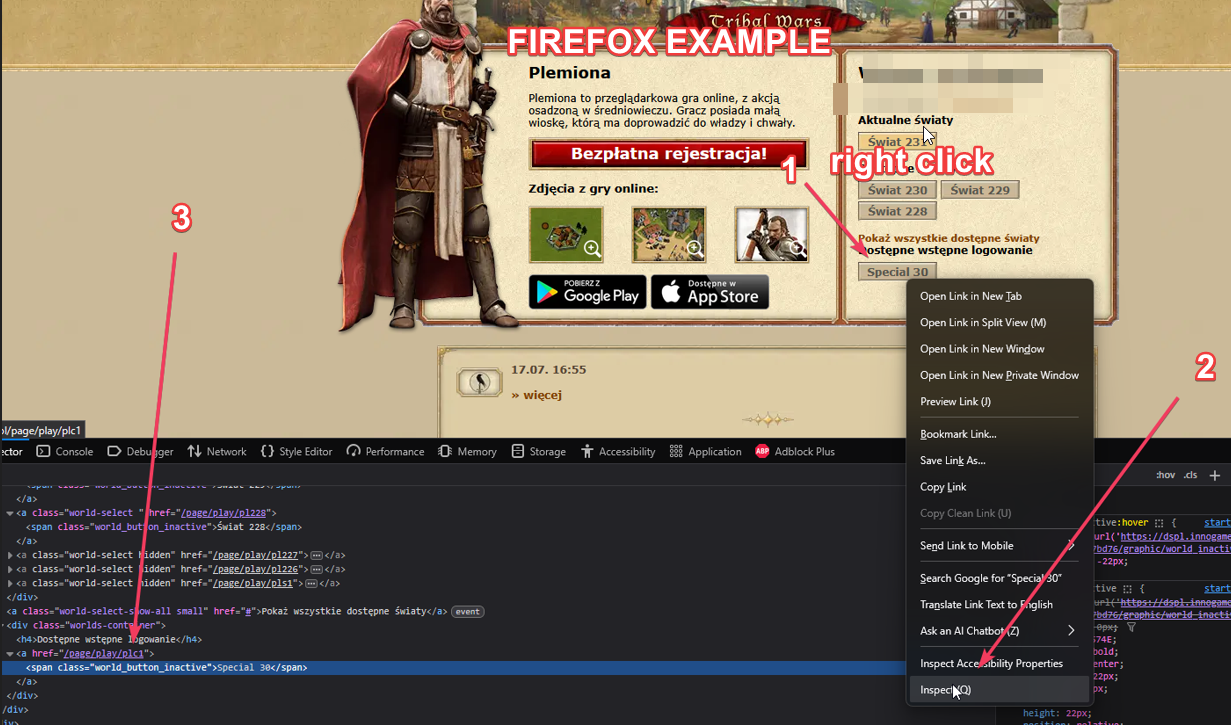
Some worlds do not use a simple numeric world value. To avoid entering the wrong world, inspect the world button on the Tribal Wars start page and copy the identifier from the link after /page/play/.

In the example below, the button for Special 30 points to /page/play/plc1, so the world value you should enter in TW Automator is plc1.

Inspecting Tribal Wars world button HTML to read the plc1 world prefix
Read the world identifier from the button HTML. Here, href="/page/play/plc1" means the prefix is plc1.

03

Configuring Telegram captcha alerts

TW Automator can send you a private Telegram message when captcha is detected. You only need two values: Bot Token and Chat ID. Both values go into the Telegram settings in the side menu.

Step A: create your Telegram bot

  1. Open Telegram.
  2. Search for @BotFather. It is the official Telegram bot used to create other bots.
  3. Open the chat with BotFather and send this message: /newbot.
  4. BotFather will ask for a name. You can type something like TW Automator Alerts.
  5. BotFather will ask for a username. It must end with bot, for example my_tw_alerts_bot.
  6. BotFather will send you a long text called a token. Copy it. This is your Bot Token.

Step B: get your Chat ID

  1. Open the bot you just created in Telegram.
  2. Press Start or send any message to it, for example hello.
  3. Open a browser like Chrome or Firefox.
  4. Paste this address into the browser, but replace YOUR_TOKEN with your real bot token: https://api.telegram.org/botYOUR_TOKEN/getUpdates.
  5. The page will show a lot of text. Press Ctrl + F and search for "id".
  6. Copy the number after "id". It will look similar to 123456789. This number is your Chat ID.

Step C: paste values into TW Automator

  1. Open TW Automator.
  2. Open the side menu.
  3. Paste the long token into Bot Token.
  4. Paste the number into Chat ID.
  5. Save the settings and send a test notification if the app shows that option.

Important: do not share your bot token with anyone. If somebody gets your token, they can control your Telegram bot. If that happens, open BotFather and generate a new token.

Telegram references: BotFather guide and getUpdates API.